The account table & columns
The account table is the heart of the Accounts tab: each row is one account with all its details and status. Beyond reading, every cell also lets you click to copy and double-click to edit in place, sensitive values are masked, and the 2FA cell even copies a live-valid TOTP code.
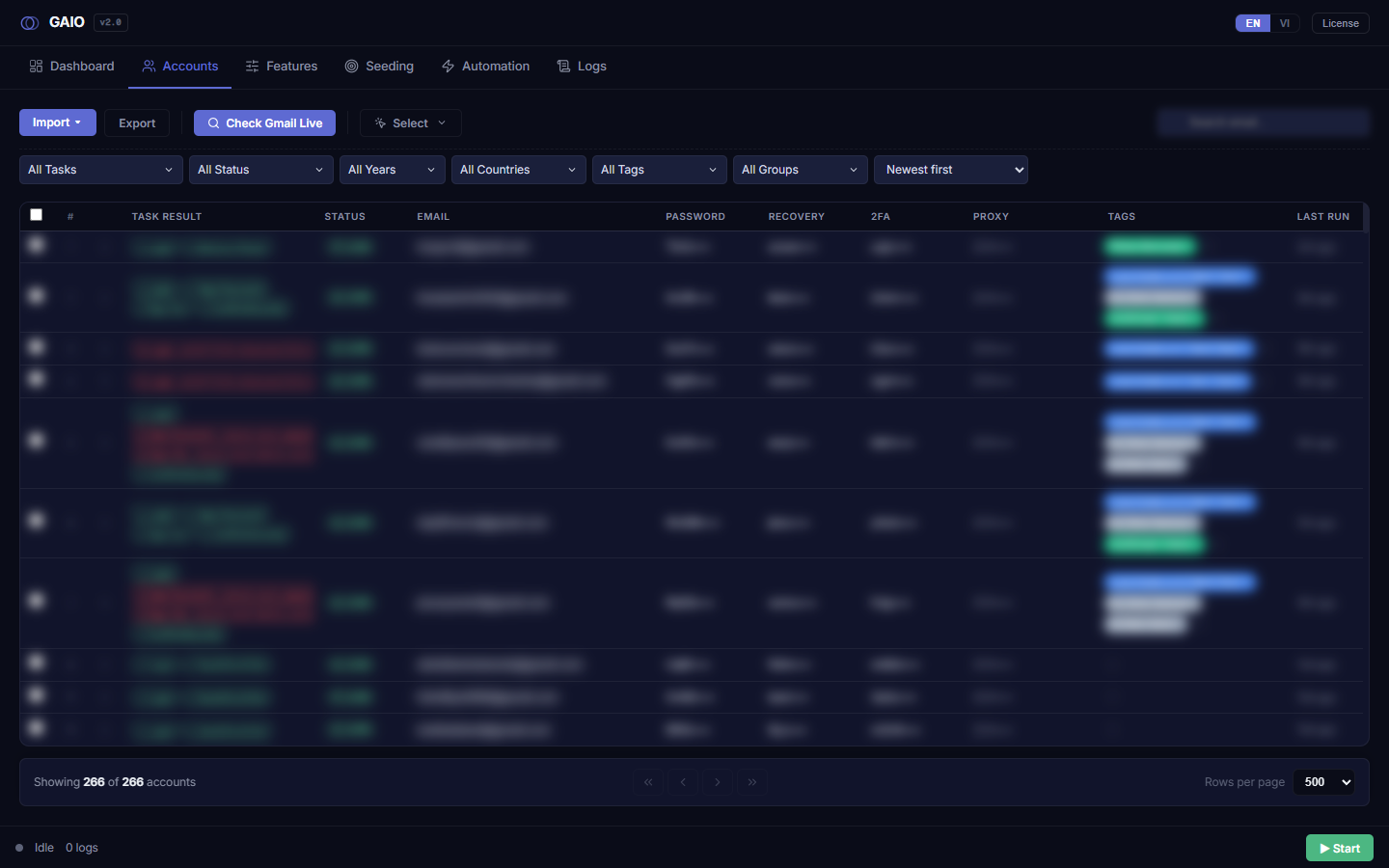
The table columns
| Column | What it shows |
|---|---|
| Checkbox | Selects the row for bulk actions. |
| Row number (#) | The row's index. |
| Expand chevron (▸) | Expands the row to reveal detail fields. |
| Task Result | Coloured chips per module with a ✓ ⚠ ✗ icon, optionally with an inline value or tooltip. |
| Status | LIVE (green) / Verify (amber) / Disabled (red) badge. |
| The email address — also the profile name in GPMLogin/Multilogin (noted in the column-header tooltip). | |
| Password | The password — masked by default. |
| Recovery | The recovery email — masked by default. |
| 2FA | The 2FA secret — masked; click to copy the live-valid TOTP code (see below). |
| Proxy | The proxy — masked by default. |
| Tags | Coloured tag chips; add/remove right in the cell. |
| Last Run | A relative time (e.g. 3h ago); hover for the exact local time. |
— dash.Click to copy, double-click to edit
Every value cell (Email, Password, Recovery, 2FA, Proxy, and the fields in an expanded row) has two gestures:
- Single-click — copies the value to the clipboard; the cell flashes green to confirm.
- Double-click the same cell — turns it into an input.
- Type your change, then
Enter(or click away) to save,Escapeto cancel.
Click=copy, Dbl-click=edit.Masked sensitive values
The Password, Recovery, 2FA and Proxy columns are masked by default, showing only the first 4 characters plus ••• — e.g. Qa2W•••. Values of ≤ 4 characters show all dots.
- Click to reveal briefly — while copying, the full value appears for about ~600ms (green flash), then re-masks.
- Hover — the tooltip always shows the full value.
The 2FA cell — copy a live TOTP code
The 2FA cell is special: a single click does not copy the raw secret; it generates the current 6-digit TOTP code from that secret and copies the code — ready to paste straight into Google's verification field.
- Single-click the 2FA cell of an account that has a secret — the app generates the current TOTP code and copies it (the cell flashes green).
- Double-click to edit the underlying 2FA secret instead.
— and do nothing.The Tags cell — add/remove inline
- Remove a tag — click the
✕on a tag chip. - Add a tag — click the dashed
+button (or double-click the cell), type a tag name, pressEnter. - Cancel — press
Escape.
#6366f1). To choose a colour, use Actions ▾ → Add Tag. Tag changes trigger a refresh so the filters/tag lists update accordingly.Row expand (detail fields)
Click the ▸ chevron at the start of a row to expand a detail panel with fields that aren't in the main columns. Each field still supports click-to-copy / double-click-to-edit.
- Expanded fields: Creation Year, Country, App Password, Phone Verified, New Password, New Recovery, Old Password, Old Recovery, Old 2FA.
▾) to collapse.Pagination & rows-per-page
- Read
Showing X of Y accountsat the left of the bottom bar — how many you're viewing out of the total. - Move between pages with
⏮ First/◀ Prev/ the numbered buttons (up to 7, windowed around the current page) /Next ▶/Last ⏭. - Change
Rows per pageto load more or fewer rows at once:10, 20, 50 (default), 100, 200, 500, 1000, 2000, 5000.
First/Prev are disabled on page 1; Next/Last are disabled on the last page. A larger page size lets First 500 and Ctrl+A cover more rows, since those act on the loaded page.Auto-refresh during a run & toast notifications
While automation is running elsewhere in the app, the table updates itself — Task Result/Status refresh without you pressing anything.
- During a run — the table polls roughly every 4 seconds and updates results. When it stops, the table refreshes once to capture the final results (no F5 needed).
- Toasts — most actions (import, export, copy, delete…) show a confirmation toast at the bottom-right: green
✓on success, red✗on failure. Toasts auto-dismiss after ~4 seconds, so any path/result info in them is temporary.