Running automation
This is the core: get everything into place, then press one button to run in bulk. This chapter goes from the pre-flight checklist to the moment a run starts, and explains the three Start / Resume / Stop buttons.
Before you run — a checklist
Check these four things first, to avoid a run failing mid-way:
- The antidetect browser is running — GPMLogin or Multilogin is open; this is the app that actually opens the profiles.
- Each account has a profile + a working proxy — the proxy is alive (e.g.
1.2.3.4:8080) and a fingerprint is assigned. - The license is activated (on an enforced build) — if not, pressing Start re-locks the UI instead of running.
- At least one piece of work is enabled — a feature in the Features tab or a target in the Seeding tab.
Destructive features — changing the password, adding/changing 2FA, removing the phone, signing out of all devices, deleting data — act on REAL Google accounts and are usually irreversible. Double-check what you enabled in the Features tab before pressing Start, and test on a few accounts before running the whole set.
Steps to run a batch
- Select accounts — in the Accounts tab, tick the accounts to run. Leave none selected = run ALL accounts in the table (still bounded by the license cap).
- Enable the work — go to the Features tab to enable features, and/or the Seeding tab to declare targets.
- Configure Automation — in the Automation tab, set the number of parallel threads and operating options.
- Press ▶ Start (N) — the green button at the bottom-right;
(N)is the number of selected accounts. The tool checks the license → checks the limit → begins. - Monitor — the tool auto-switches to the Logs tab. Each thread opens an antidetect profile and works like a real person; the Logs table and Dashboard update live.
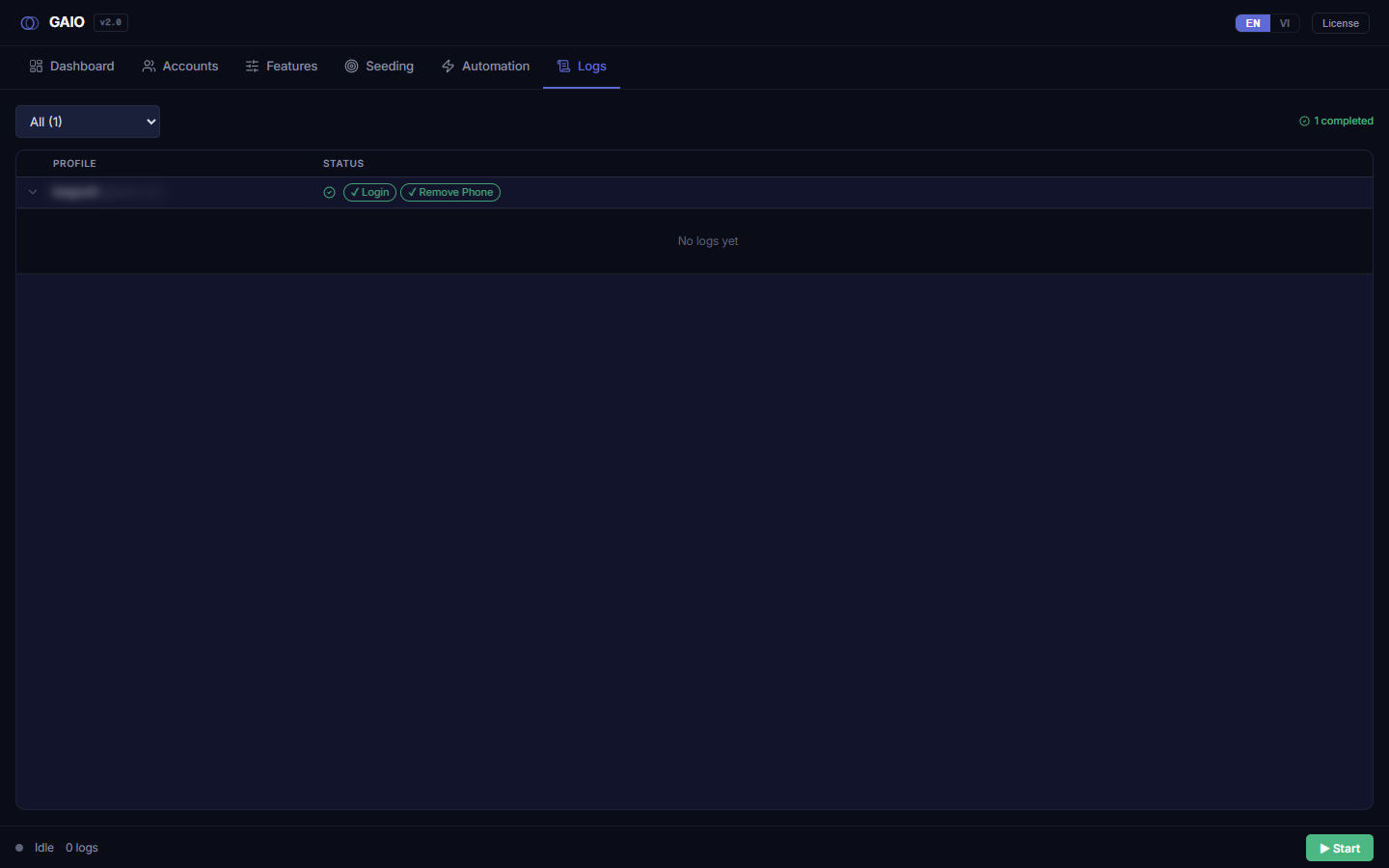
Start / Resume / Stop
These three buttons sit at the bottom-right of the status bar, appearing depending on the current state:
| Button | When it shows | What it does |
|---|---|---|
▶ Start (N) (green) | When idle | Starts a new run on the selected accounts (or all if none selected). Clears old logs and runs in the current sort order of the Accounts tab. |
↻ Resume (amber) | When idle and a checkpoint exists | Continues the previous run from its saved point instead of starting over. Uses the saved account list — not your current selection. |
⏹ Stop (red) | While running | Stops the in-progress run and returns the UI to idle. Usually leaves a checkpoint, so a ↻ Resume button may appear afterwards. |
The ↻ Resume button only shows when there is a checkpoint to continue. If the previous run finished completely or there is nothing to resume, the button simply doesn't appear. Because Resume uses the saved list, if you want to run a different set of accounts, use ▶ Start rather than Resume.
The progress percentage is based on processed / total, so when accounts are retried the number can look like it's stalling for a moment — that's normal. If pressing Start snaps the UI back to the License screen, the license isn't activated / has expired (see the License activation chapter).