Introduction & concepts
Welcome to GAIO Tool (short for Google All-In-One) — the Windows app that lets you manage and operate dozens to hundreds of Google accounts at once, safely and in a human-like way. Instead of logging into each account by hand, you declare your accounts once, pick the work to be done, and press Start. The tool opens a browser for each account, acts like a real user, and reports the results back to you.
Who GAIO is for
The tool is built for the operator — you do not need to know how to code. Everything is driven with the mouse across six tabs: import accounts, choose features, press run, monitor. This manual walks through every button, every field, and every option so you can use the tool to its full power.
A glossary to read first
This manual reuses the eight terms below over and over. Master them and the rest becomes easy.
| Concept | What it means |
|---|---|
| Account | A single Google login row in the tool's database: email, password, recovery email/phone, 2FA code, and so on. This is the unit you act on, managed in the Accounts tab. |
| Profile | An antidetect browser profile, named after the account's email. Each profile carries its own fingerprint and proxy so every account looks like a different, real device. |
| Antidetect browser | The external app (GPMLogin or Multilogin) that actually opens the profiles. GAIO drives it remotely; you must have this app running before a run. |
| Proxy | The IP address (residential / ISP / mobile) each profile uses to reach the internet, e.g. 1.2.3.4:8080. A good proxy makes an account harder to detect. |
| Feature | A per-account action: rename, add 2FA, change recovery email, login check, and so on. You toggle these in the Features tab. |
| Seed / nurture | Human-like background activity (reading mail, browsing news, searching...) that keeps an account "warm" and natural, lowering the risk of being locked. |
| Seeding | Having your accounts watch YOUR OWN videos (targeted views). Unlike nurturing, seeding aims at specific content you designate, configured in the Seeding tab. |
| Automation run | One batch execution: the tool opens many profiles in parallel (multi-threaded), runs the enabled features for each account, and writes logs. |
How one account moves through the tool
The typical lifecycle of a work session, so you can picture the big picture before diving into detail:
- Import accounts — in the Accounts tab, each email becomes an antidetect profile.
- Choose the work — enable features in the Features tab, and/or declare targets in the Seeding tab.
- Set the run configuration — choose the thread count and options in the Automation tab.
- Press Start — the tool opens an antidetect profile per account and acts like a real person.
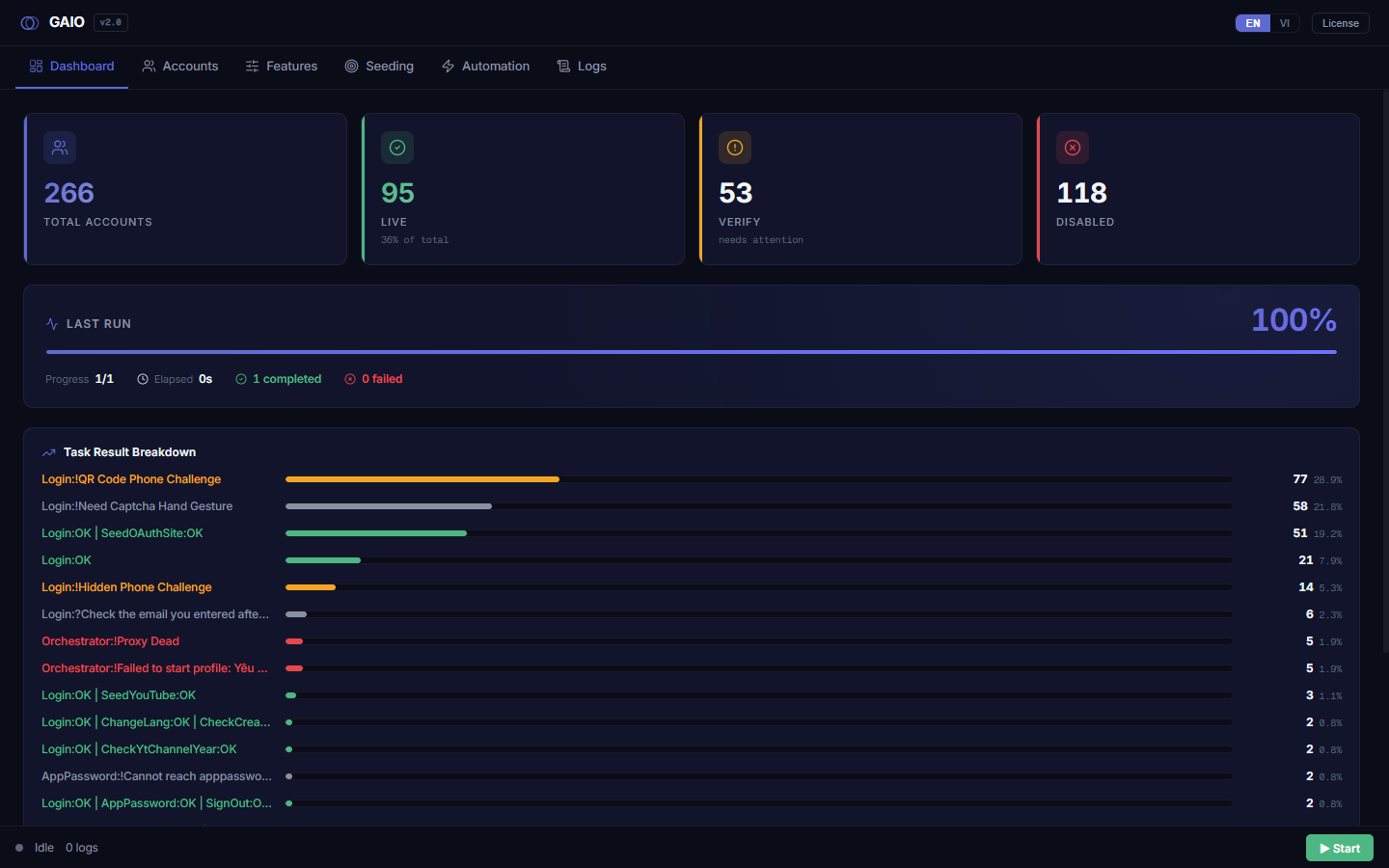
- Monitor the results — the Logs and Dashboard tabs show who finished, who failed, and who needs attention.
No need to memorize all of this now. Each concept above has its own tab and its own chapter in this manual. Read on to License activation and the Interface overview to get comfortable, then come back to this table any time you hit an unfamiliar word.