Features tab — how it works
The Features tab is where you turn on/off each action the tool will perform on every account when it runs automation. Each feature is a sliding toggle. Nothing runs from here — you only configure: pick the actions you want, press Save Features, then go to another tab (Accounts / Automation) to run accounts. During a run, each account performs exactly the features you enabled.
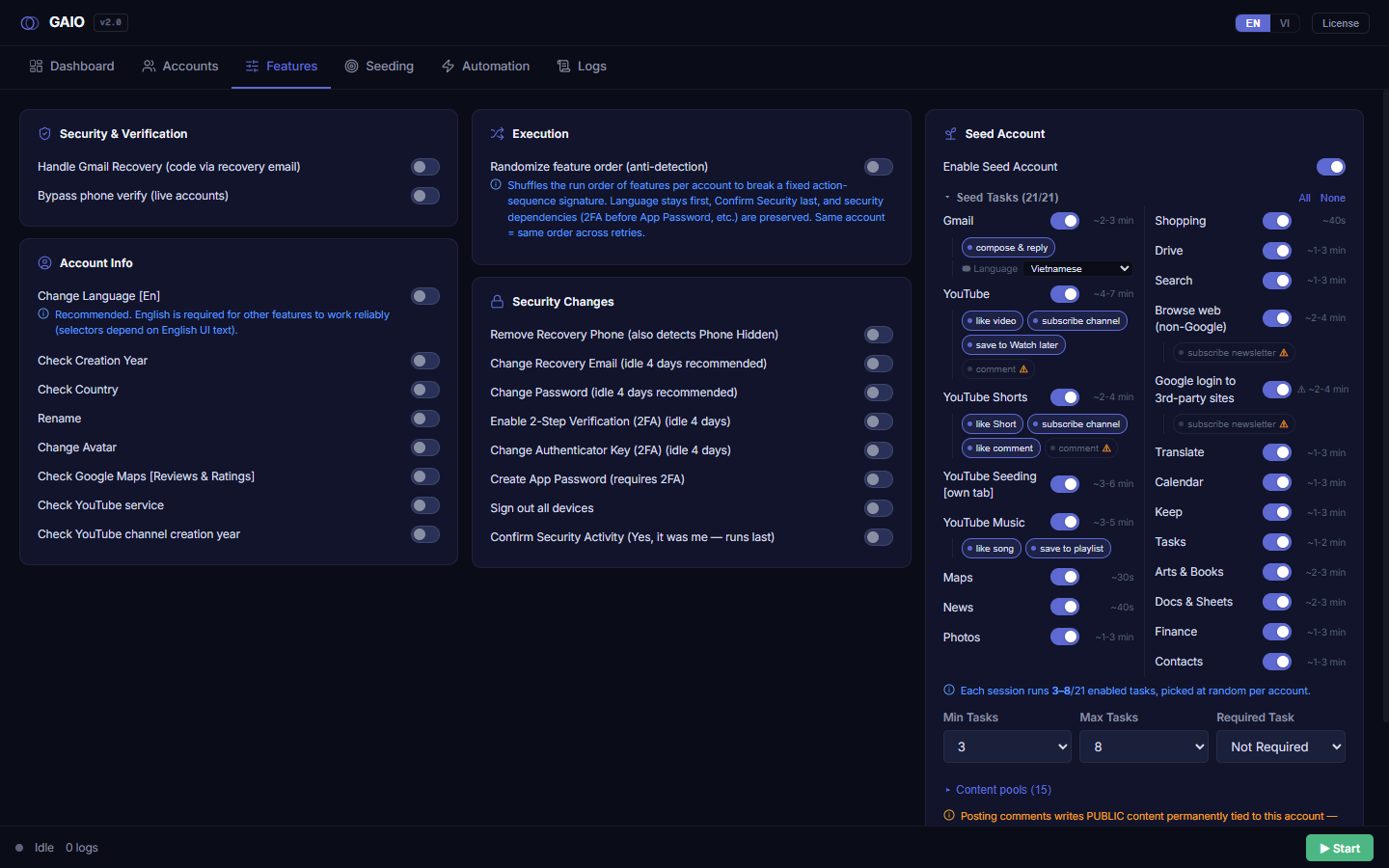
Page layout: 4 panel groups + Seed block
The page is split into clear groups, each collecting features of the same kind:
| Group | Icon | What it holds |
|---|---|---|
| Security & Verification | shield | Handling login challenges: Handle Gmail Recovery, Bypass phone verify (live accounts). |
| Account Info | user | Change language, rename, change avatar, and information checks (creation year, country, Maps/YouTube services). |
| Execution | shuffle | Randomize feature order (shuffle the run order of features — anti-detection). |
| Security Changes | lock | Real security changes: remove recovery phone, change recovery email/password, enable 2FA, create app password, sign out all devices, confirm security activity. |
| Seed Account | sprout | Nurture mode: makes the account behave like a real human across many Google services to warm it up. |
How the toggle switch works
Each feature and each seed task is a full-width row: label on the left, sliding switch on the right. Clicking anywhere on the row (the label or the switch) flips its state.
- When ON: the row is highlighted / gets a "checked" look, the switch slides right.
- When OFF: the row is dimmed, the switch slides left.
Turning a toggle ON only stages it — nothing happens yet. There is no confirmation dialog at this stage. Your choices are saved only when you press Save Features, and the actions only actually run when you run accounts from another tab.
Randomize feature order (anti-detection)
The Execution group has one special toggle: Randomize feature order (anti-detection). When ON, the run order of the enabled features is shuffled per account, so accounts don't all execute the exact same action sequence (breaking a fixed, easy-to-fingerprint pattern).
It is a constrained shuffle, not fully random:
- Change Language always runs first (selectors depend on the English UI).
- Confirm Security Activity always runs last (to clean up alerts the other changes generate).
- Security dependencies are preserved (e.g. enabling 2FA must run before Create App Password).
- The same account always gets the same order across retries (a retry is reproducible).
How to use this tab
- Go through each panel group — decide which actions you want the tool to perform on every account.
- Turn on the matching toggles — click the row to switch it ON. Some features (Rename, Change Avatar, Change Recovery Email, Change Password) expand a grey config panel where you pick extra data sources.
- Configure the Seed block if you want to nurture accounts — turn on
Enable Seed Account, choose the tasks, set Min/Max (see the Nurture section). - Press
Save Features— the blue button in the bottom action bar of the page. - Watch for the confirmation — the text
✓ Features saved!(or✗ Save failed) appears next to the button and auto-clears after ~3 seconds.
The Save Features button saves the entire page at once: feature toggles, Seed config, name/avatar sources, bulk password/recovery values, the shuffle-order option, and every content-pool file. If you don't press Save, nothing is applied.