Nurture (Seed) accounts
The Seed Account block (sprout icon) in the right column is the account "warm-up" mode: it makes the account perform human-like organic activity (watch/read/browse across many Google services) so it looks like a real user. This block only appears when you turn on the master toggle.
Enable Seed Account — the master toggle
Enable Seed Account is the master switch for all nurture behaviour. When ON, the entire Seed configuration block appears below (task list, Min/Max, Required Task, Content pools). When OFF, all Seed settings are hidden and not applied.
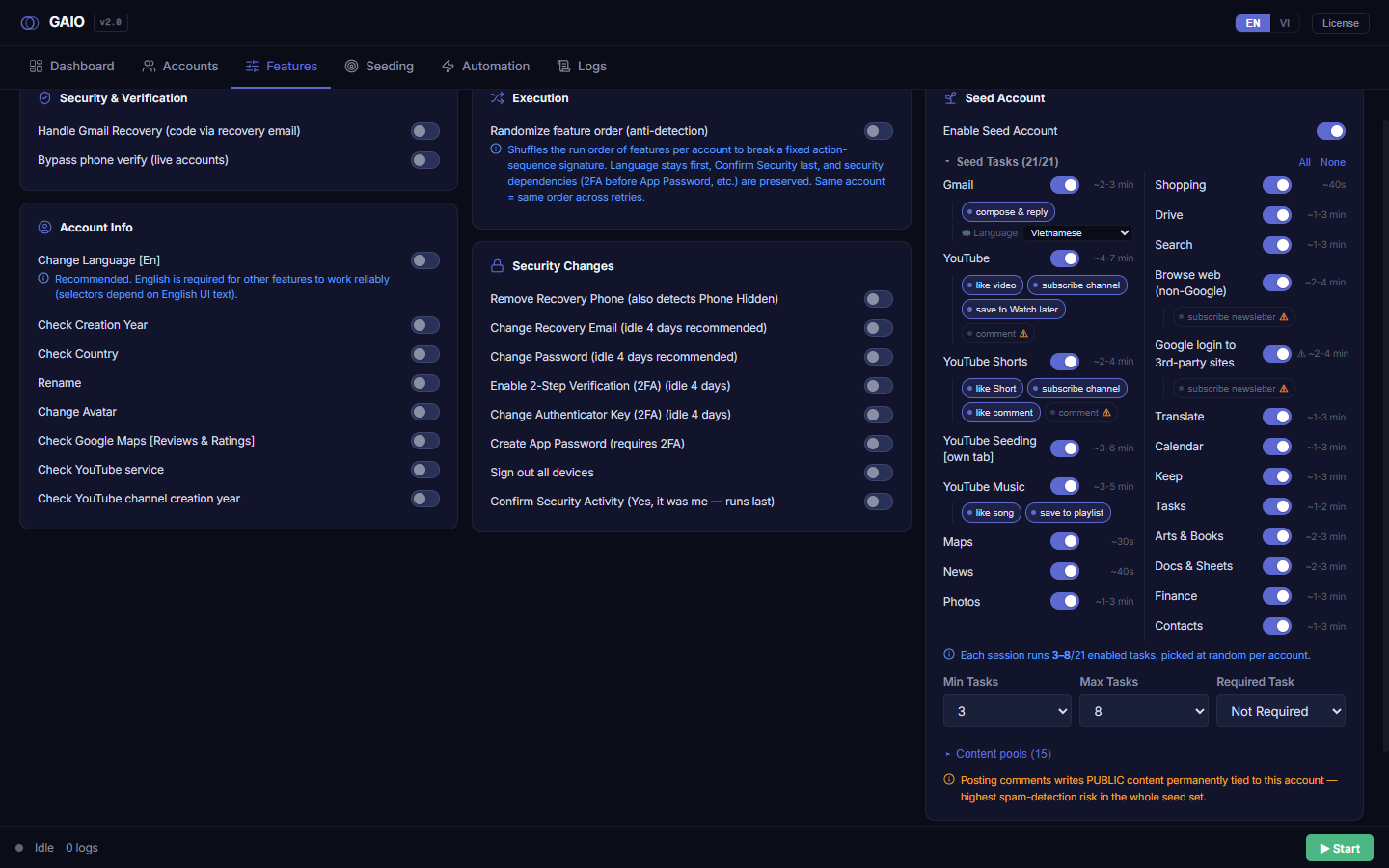
The Seed Tasks list — collapse, count, All / None
The seed task list sits inside a collapsible header. It shows how many parent tasks are enabled and lets you collapse/expand or bulk-select.
- Click the
Seed Tasks (X/Y)header (with the ▾/▸ arrow) to collapse or expand the list. X = number of enabled runnable parent tasks, Y = total parent tasks (child chips are NOT counted). - Click
Allto enable the default recommended set of tasks. - Click
Noneto disable every task (and clear Required Task). - When collapsed, a one-line summary shows the first ~6 enabled task names plus a
+Ncount.
The count is "runnable tasks", not raw toggles — enabling a child chip (like/subscribe) does NOT increase X. All does NOT enable the risky items (YouTube/Shorts comment, 3rd-party login, newsletter) or YouTube Seeding — those must be turned on by hand. Collapse state is not saved.
Each session runs Min–Max tasks, picked at random
There are 21 tasks in total across Gmail/YouTube/Search/Maps/News/Drive/Photos/Shopping and more. During a run, each account randomly picks Min–Max tasks from the ENABLED parent tasks and performs them with human-like behaviour. The number on the right of each row is the rough time that task takes.
Per-service parent tasks
| Service group | Task (approx. duration) |
|---|---|
| Gmail | Gmail (~2-3 min) |
| YouTube | YouTube (~4-7 min) · YouTube Shorts (~2-4 min) · YouTube Seeding [own tab] (~3-6 min, default OFF) · YouTube Music (~3-5 min) |
| Search & news | Search (~1-3 min) · News (~40s) · Maps (~30s) · Shopping (~40s) |
| Storage & media | Drive (~1-3 min) · Photos (~1-3 min) · Docs & Sheets (~2-3 min) |
| Productivity | Translate (~1-3 min) · Calendar (~1-3 min) · Keep (~1-3 min) · Tasks (~1-2 min) · Contacts (~1-3 min) |
| Discovery & web | Arts & Books (~2-3 min) · Finance (~1-3 min) · Browse web (non-Google) (~2-4 min) · Google login to 3rd-party sites (⚠ ~2-4 min, default OFF, risky) |
Only parent tasks count toward the Min/Max pool. YouTube Seeding and Google login to 3rd-party sites are OFF by default (Seeding is configured on its own Seeding tab; OAuth-site is flagged risky). Some tasks read content from a word-list file (see Content pools) — an empty/missing file limits that task. The Browse web (non-Google) task requires the site to resolve over IPv6 through the proxy, otherwise it's unreachable.
Sub-action chips (like / subscribe / save / comment...)
Under each parent task (only visible when the parent is ON) are pill-shaped chips with a status dot. Chips are fine-grained switches for OPTIONAL actions within a parent task — enabling a chip does not add a task, it enables an extra behaviour (e.g. also liking the video you watch). Click a chip to toggle it ON (filled/coloured) or OFF (outline/grey).
| Parent task | Child chips |
|---|---|
| Gmail | compose & reply |
| YouTube | like video · subscribe channel · save to Watch later · comment (⚠) |
| YouTube Shorts | like Short · subscribe channel · like comment · comment (⚠) |
| YouTube Music | like song · save to playlist |
| OAuth-site & Browse web (shared) | subscribe newsletter (⚠) |
The comment chips (YouTube comment, Shorts comment) and OAuth/newsletter are RISKY: they post public content permanently tied to the account and are OFF by default with a ⚠ badge. A warning banner appears when any of these is enabled. The subscribe newsletter chip is shared by two parents (OAuth-site and Browse web), so it shows under whichever is enabled.
Send Mail Language — the writing language
When you enable Gmail and its compose & reply chip, a ✉ Language dropdown appears to choose the language the AI uses to write the email body/replies for the Gmail compose task.
- Enable
Gmailand thecompose & replychip. - Use the
✉ Languagedropdown to pick the writing language. - Press
Save Features.
Values: Vietnamese (default), English, Thai, Indonesian, Filipino, Malay, Hindi, Bengali, Urdu, Arabic, Spanish, Portuguese, French, German, Russian, Japanese, Korean, Chinese.
Only shown when compose & reply is ON. The value is fed straight into the content-generation prompt, so it must be a real language name; old free-text values that don't match the list are discarded and fall back to Vietnamese.
Min Tasks / Max Tasks / Required Task
This three-column row (placed BELOW the task list) controls how many tasks each account performs per session (a random count between Min and Max) and optionally forces one task to always run.
- After choosing which tasks are enabled, set
Min Tasks(fewest per account). - Set
Max Tasks(most per account). - (Optional) Set
Required Taskto guarantee one task always runs — the dropdown listsKhong Bat Buoc(not required) plus one entry per enabled parent task. - Press
Save Features.
You cannot set Min > Max (the Min dropdown only lists up to Max, and changing one drags the other). Max's ceiling is the number of enabled parent tasks (enabling child chips doesn't raise it). If Max exceeds the enabled count it is silently clamped down on the UI. Both are disabled when no task is enabled. Turning off a task set as Required resets Required Task to none. A warning appears if enabled tasks ≤ Min (every account would run identical tasks with no variance).
Content pools — content sources (15 word-list files)
The collapsible ▸ Content pools (15) link below Min/Max lets you override the .txt source files each task draws its topics/phrases from (search topics, comments, places, notes...) and shows how many lines each file has.
- Click
▸ Content pools (15)to expand. Only rows for enabled tasks appear. - For a task, click
Browse…to pick a custom.txt/.csvfile (or leave it to use the default file inData). - Read the line count on the right (
N lines) to confirm the file loaded — a red not found means the file is missing/unreadable and that task will lack content. - Click
resetto drop a custom override and return to the default (only shown when custom). - Press
Save Features.
The 15 pools are: Search — topics (SearchTopics.txt, also Browse web) · Google login — site list (OAuthSites.txt) · YouTube — search terms (YoutubeTopics.txt, also Shorts) · YouTube — comment lines (YoutubeComments.txt, also Shorts comment) · YouTube Music — queries (MusicQueries.txt) · Maps — places (MapsPlaces.txt) · Shopping — items (ShoppingGoods.txt) · Translate — phrases (TranslateTexts.txt) · Calendar — events (CalendarEvents.txt) · Keep — notes (KeepNotes.txt) · Tasks — to-dos (TaskItems.txt) · Arts — art topics (ArtsTopics.txt) · Books — book topics (BookTopics.txt) · Docs — draft content (DocNotes.txt) · Contacts — people (ContactPeople.txt).
An empty override = the default file in Data. Each account picks a fixed slice of the pool by content hash, so editing a file does not reshuffle the whole fleet. Line counts are only fetched when the panel is open.
Warning & info banners
Below the task list, a coloured banner tells you the practical effect of your current selection:
| Colour | Message | When |
|---|---|---|
| Red | No task enabled — seeding will be skipped. | 0 parent tasks are on. |
| Amber | Enabled tasks ≤ Min: every account runs the exact same tasks (no variance). | Enabled count is at/below Min. |
| Blue | Each session runs X–Y/N enabled tasks, picked at random per account. | Normal state. |
| Amber | Posting comments writes PUBLIC content permanently tied to this account — highest spam-detection risk… | A risky comment/oauth/newsletter chip is enabled. |
The public-content banner is your main risk cue — heed it before enabling comment/OAuth/newsletter chips.
How enabledTasks works (only ticked tasks run)
enabledTasks is the saved list of switched-ON seed keys, stored in seedConfig. Only ticked tasks run. On next open your list is restored, plus any brand-new default tasks are auto-added so they aren't silently left OFF; at the same time keys owned by the Seeding tab (ytseed_*) are preserved untouched when saving from this tab.
The default set (DEFAULT_SEED_KEYS) = all tasks EXCEPT the risky ones (youtube_comment, shorts_comment, oauth_site, newsletter_sub) and youtube_seeding. An empty array = skip seeding; the array is always written on Save.
Auto re-login when the session drops mid-nurture
If Google signs the account out partway through nurturing (IP region change, suspicion…), the tool logs back in automatically — including password and 2FA code — and resumes nurturing instead of dropping the whole run. Capped at 2 times per account to avoid useless loops; the re-login time is credited back to the budget so it doesn't eat into real nurture time.
No separate toggle — it runs automatically when Seed is on. If re-login fails (e.g. the account is forced into selfie/phone verification) that task stops with a clear status.