Security changes
The Security Changes group (lock icon) in the middle column holds operations that make real changes to the account's security — not information checks. Some of these are irreversible. For actions that produce new secrets (password, 2FA key, app password), the tool writes the new value back to the account's row in the database — make sure those values are preserved, or you may lock yourself out of the account.
This entire group makes real security changes. After each sensitive action, Google may raise a re-authentication challenge (password / TOTP / WebAuthn) — the tool handles it automatically, but understand these are consequential and some are permanent.
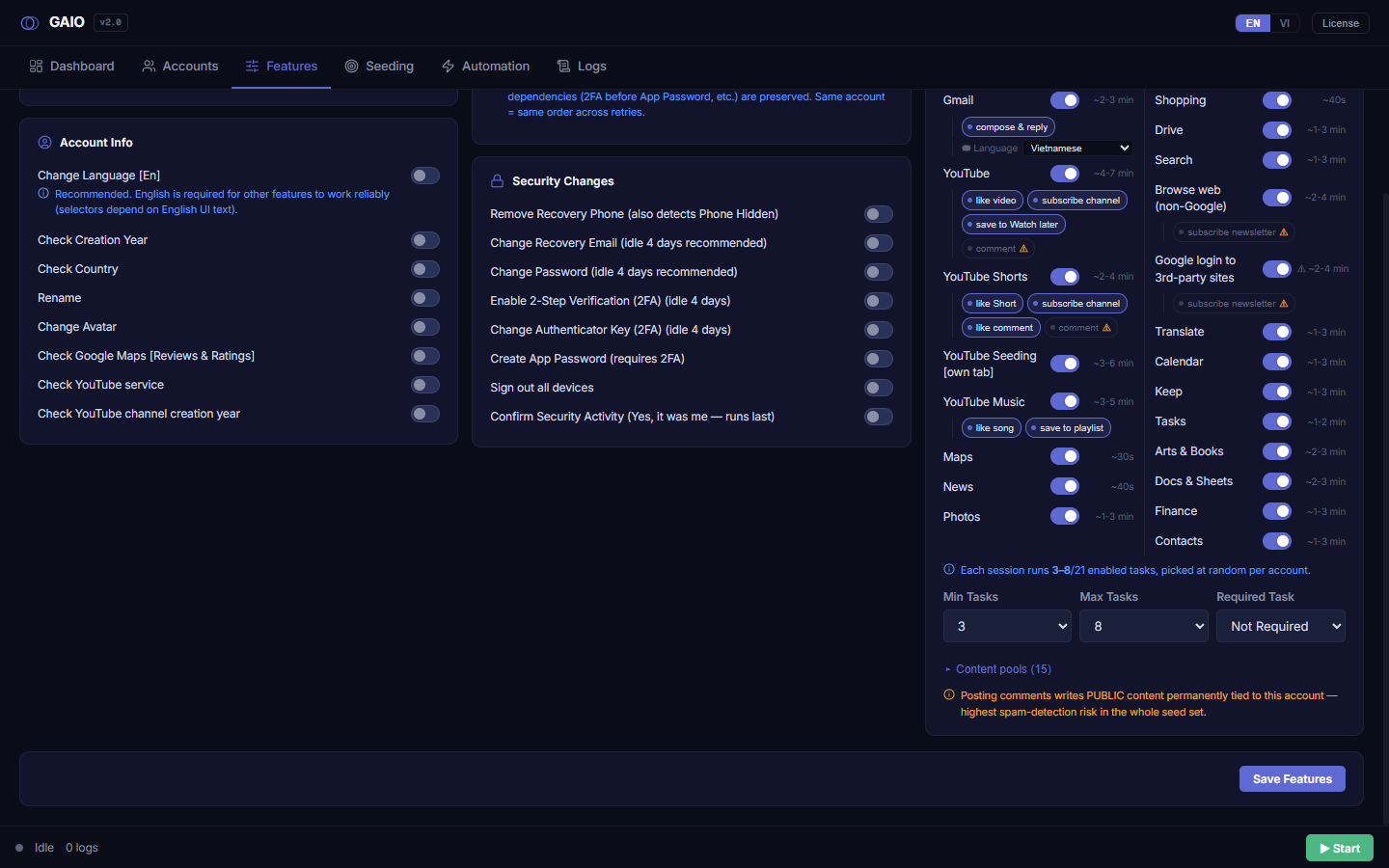
Remove Recovery Phone
Remove Recovery Phone (also detects Phone Hidden) — when ON, the tool removes the recovery phone number from the account (and also detects a "Phone Hidden" state).
Irreversible: the phone number is actually removed from the account. Google requires re-authentication (including a WebAuthn challenge) after pressing Remove. The number can live in 3 places and the confirm dialog comes in 2 forms — all handled automatically.
Change Recovery Email — pick the new recovery-email source
When you turn Change Recovery Email ON (label: idle 4 days recommended), a panel appears with a “Take the new recovery email from” dropdown. You pick exactly one source — the tool uses that source, it does not auto-guess.
| Source | Meaning |
|---|---|
| The “New Recovery Email” column of each account Default | Each account uses the value you entered in its New Recovery Email cell (Accounts tab, or via Excel import / paste). If some cells are empty, pressing Start lists those accounts so you can fill them in — see Missing values below. |
| Each account's column, falling back to a shared recovery email | Hybrid: accounts that filled their own cell use it; accounts with an empty cell fall back to the shared email you enter below (instead of being skipped). Reveals a shared-email box. |
| One recovery email shared by all | Shows an input; every account is changed to this same recovery email, regardless of its own cell. |
- Turn on
Change Recovery Email— the panel expands. - Pick a source in Take the new recovery email from.
- If “shared by all” — type the address in the
New recovery email (all accounts)box that appears. - Press
Save Features.
Real security change: the recovery email is changed on the account.
Change Password — pick the new-password source
When you turn Change Password ON (label: idle 4 days recommended), a panel appears with a “Take the new password from” dropdown — four sources. Pick one and the tool uses exactly that.
| Source | Meaning |
|---|---|
| The “New Password” column of each account Default | Each account uses the value in its New Password cell (Accounts tab, or via import / paste). If some cells are empty, pressing Start lists those accounts so you can fill them in — see Missing values below. |
| Each account's column, falling back to a shared password | Hybrid: accounts with their own cell use it; accounts with an empty cell fall back to the shared password you enter below. Reveals a shared-password box. |
| One password shared by all | Shows an input; every account is changed to this same password (placeholder e.g. MyNewP@ss2026). |
| Auto-generate a unique strong one per account | Shows a Password length box (12–64, default 16); each account gets its own unique strong password. |
- Turn on
Change Password— the panel expands. - Pick a source in Take the new password from.
- If “shared by all” — type the password. If “auto-generate” — set the length.
- Press
Save Features.
Irreversible: the account password is actually changed. If the new password isn't recorded you can lock yourself out. In auto-generate mode each account gets a unique strong password — the tool writes the new value back to the account row, but make sure results are captured (use Export to retrieve them). The length input silently clamps to 12–64 (defaults to 16 on invalid input).
Why “per-account” is gone: the old version auto-prioritised the per-account column then fell back to a shared value, leaving many unsure which was active. Now you pick the source directly. Old settings are auto-migrated to the matching source (shared mode → “one shared value”, generator → “auto-generate”, otherwise → “each account's column”), nothing is lost.
Missing values — fill them in when you press Start
With Change Password and/or Change Recovery Email on, pressing Start first checks that every account in the run has something to change to. If some don't — an empty cell with the each account's column source, or the shared by all value left blank — the run does not start. Instead, a Missing info for the security changes dialog lists exactly those accounts:
- One row per account — type the new password / recovery email into its box, or click 🎲 (Generate a strong password). Generate for all empty boxes fills every empty password box at once; One email for all empty boxes + Fill puts one recovery email into every empty box. A search box and a Filled x/y counter help with long lists.
- Checked before saving — a password needs at least 8 characters; a recovery email must be a valid address and cannot be the account's own email. Problem boxes turn red and the dialog scrolls to the first one.
- Save and run — saves the values into each account's own box (you can review them later in the Accounts tab), then starts the run. If you picked shared by all but left it blank, the dialog asks for that one value instead and saves it in the Features tab.
- Skip these N, run the other M — runs this time without those accounts (only offered when there are others to run). Cancel does nothing.
Two-step verification & app passwords
These three toggles are tightly linked: App Password requires 2FA to be enabled.
| Toggle | What ON does | Requirement / notes |
|---|---|---|
| Enable 2-Step Verification (2FA) (idle 4 days) | Turns on 2-Step Verification (authenticator-based 2FA) and stores the generated secret. | A prerequisite for Create App Password. Label recommends idling the account ~4 days first. |
| Change Authenticator Key (2FA) (idle 4 days) | Rotates the existing authenticator (2FA) key to a new secret. | Requires 2FA to already exist. The old authenticator entry stops working; the new secret (two_fa_secret) must be stored. |
| Create App Password (requires 2FA) | Generates an app-specific password. | Requires 2FA already enabled — without it Google does not offer app passwords. The app-password name field validates real keystrokes, so the tool fills it with a trusted-input method. |
Enable 2FA and Change Authenticator Key are major, effectively irreversible changes: the account gains a 2FA secret that must be preserved (it's needed for future logins). The tool writes the new secret back to the database (two_fa_secret). Losing this secret = losing the ability to log in.
Sign out all devices
Sign out all devices — when ON, the tool signs the account out of all other devices/sessions.
Loops through the device-activity list and signs out every session except the current device. May trigger a re-authentication (password / WebAuthn) partway through — handled automatically. Every other logged-in session on those devices is terminated.
Confirm Security Activity — runs last
Confirm Security Activity (Yes, it was me — runs last) — when ON, after the security changes the tool opens the security notifications and clicks Yes, it was me on the alerts, so the account doesn't stay flagged with a "New" security alert.
- Turn on
Confirm Security Activity. - Press
Save Features. - Run accounts — this step always runs last (after all other security changes) so it can dismiss the alerts they generate.
Best paired with the other Security Changes toggles. On its own it just confirms whatever alerts already exist.
Add a forwarding address (Gmail)
Turn on Add a forwarding address (Gmail) to add one forwarding address to every selected account's Gmail, through the official dialog in Settings → Forwarding and POP/IMAP. When on, a config block appears below with three fields:
| Field | Meaning |
|---|---|
| Forwarding address (all accounts) | The address that receives the forwarded mail — shared across every account in the run. |
| App password of the receiving inbox (optional) | The app password of the inbox that receives the mail. Given → the tool reads the confirmation code Google sends there (over IMAP) and confirms it for you. Empty → the address is left pending, to confirm yourself later. |
| Keep a copy in Gmail | What Gmail does with the original after forwarding: keep it in the Inbox · mark it read · archive it · delete it. |
- Turn on
Add a forwarding address (Gmail)in the Features tab. - Enter the forwarding address — and (to auto-confirm) the app password of the receiving inbox.
- Pick how the original is handled under Keep a copy in Gmail.
- Press
Save Features, then run.
This may trigger Google's re-verification (Verify it's you) — the tool handles it with the account's 2FA. Without the receiving inbox's app password the address is still added but left pending; open that inbox and click the confirmation link to finish.
Remove all forwarding addresses (Gmail)
Turn on Remove all forwarding addresses (Gmail) to delete all forwarding addresses on each account (including any still pending) and turn off forwarding. No extra fields needed.
- Turn on
Remove all forwarding addresses (Gmail). - Press
Save Features, then run.
This removes every forwarding address present, not selected ones individually.
Backup Codes — login backup
Get Backup Codes needs two-step verification to be on. Enable it in Features.
Fetching the codes
The app opens the account's security area, fetches the 10 backup codes and saves them to each account's Backup Codes column (expand an account row to view/edit). It never generates a new set over the existing one — it only reads the current set, so codes you keep elsewhere stay valid.
Signing in with a backup code — last resort
When phone, 2FA and recovery email are all unavailable at sign-in, the app enters one of the saved backup codes. Each code is single-use: once used it is removed from the app immediately, keeping only the unused ones — matching how Google invalidates a used code.
Backup codes are part of Import / Export / the downloadable template — export them to a file, import them back from Excel or pasted text, and the Backup Codes column shows in the account table.