Run configuration
The Run Configuration box (lightning-bolt icon, column 1 of the Automation page) controls how many accounts run at once, how large the browser windows are, which monitor they tile onto, and what the tool does when a profile hits an error. This is where you balance speed against the strain on your machine. Important: nothing on this page is saved until you click Save Automation in the bottom bar.
Number of Threads
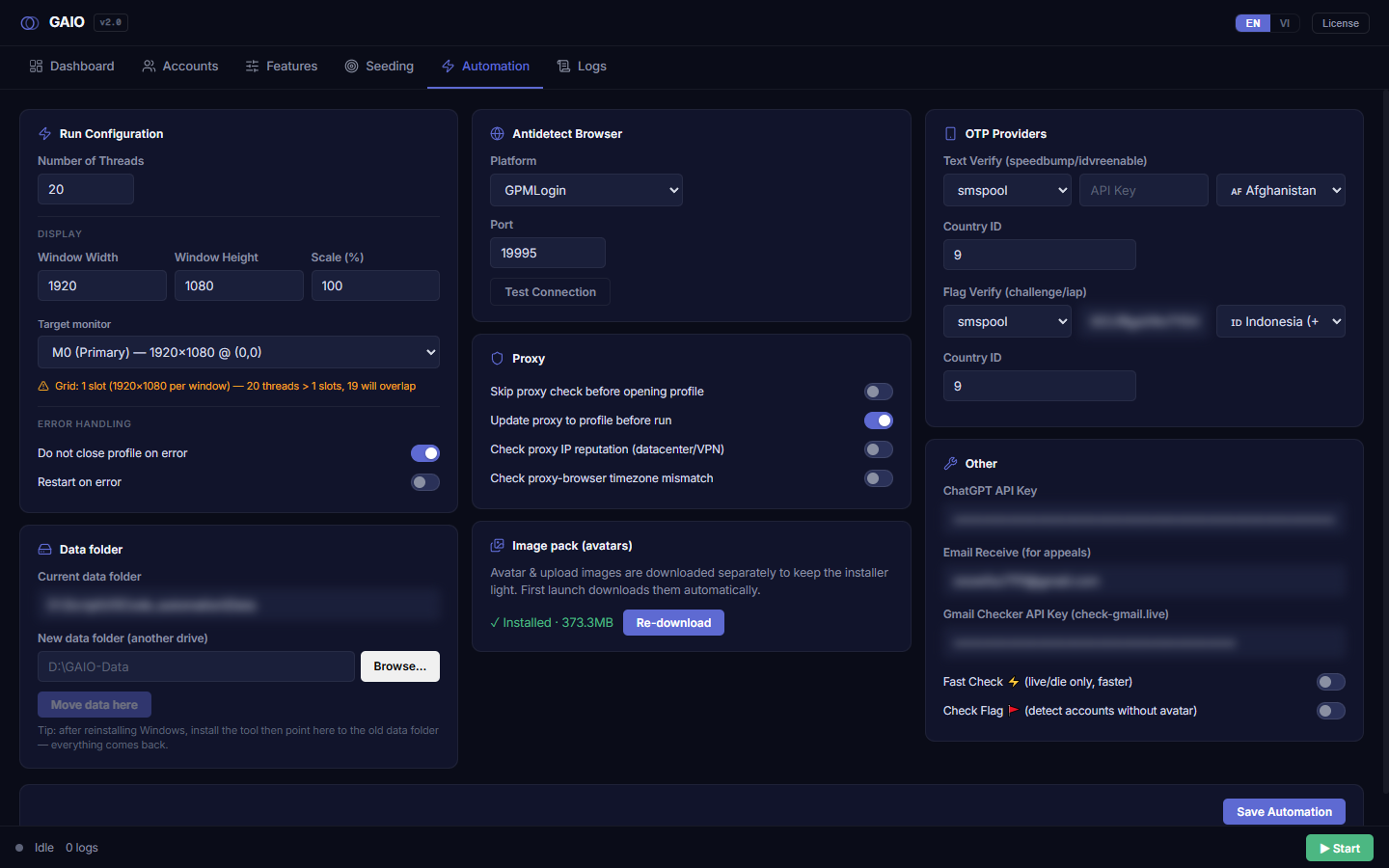
Number of Threads is how many browser profiles run in parallel. Each thread opens one antidetect window and processes one Google account. More threads means more accounts at once, but also more CPU/RAM and more windows on screen.
- Open the box — On the Automation page find the Number of Threads field (small numeric input, first in Run Configuration).
- Enter a number — Type how many accounts to run simultaneously (e.g.
2,4,6). - Save — Click
Save Automationat the bottom to persist it.
The minimum is 1: typing 0 or a negative value snaps back to 1. Default is 2. If you set more threads than the on-screen Grid slots can fit, an orange overflow warning appears and windows will overlap.
Display — window size & scale
The Display subgroup has three size fields — Window Width, Window Height and Scale (%) — plus a Randomize browser window size per account block right below them. The first two set how many pixels each browser window is resized to; Scale shrinks the window visually so more fit on screen while keeping the logical resolution.
- Set width — Enter Window Width (default
1920). - Set height — Enter Window Height (default
1080). - Set scale — Enter Scale (%) (the field ships at
50= half size, so twice as many windows fit, but100is the recommended setting — see the warning below). Physical window size = Width × Height × Scale%. - Check the grid — Watch the Grid: N slots line below update, then click
Save Automation.
If Width > 1920 or Height > 1080 a Size > FHD may be detected warning appears — larger-than-Full-HD windows look unusual to Google. And any Scale below 100% is also flagged: an unusual devicePixelRatio can be detected by the platform. In return, a low Scale fits more windows — weigh it up, but know it is a signal that can leak, and that below 100% the per-account window-size randomisation is disabled entirely.
When Platform = Multilogin X, the Scale (%) field is disabled and forced to 100 (Multilogin doesn't support visual scale; to scale you must add --force-device-scale-factor to the profile's cmd_params yourself).
Randomising window size per account
Right below those three size fields sits the Randomize browser window size per account checkbox (ON by default). With it on, every account gets its own window size instead of the whole fleet opening at one identical size — the mechanism is described in the Human-like behaviour chapter. Ticking it reveals three percentage fields:
| Field | Default | Meaning |
|---|---|---|
| Affected (%) | 90 | Share of accounts that get a resized window. The rest stay maximised — real people do that too. |
| Max width (%) | 20 | How much the width may shrink at most, 0–60. |
| Max height (%) | 10 | How much the height may shrink at most, 0–60. Kept lower than width because real users protect vertical reading space. |
This block only applies at Scale 100%: at any lower Scale the checkbox is dimmed and locked, with the line Only applies at Scale 100%. If the width ceiling would take the narrowest window below 1330px, a yellow warning shows that exact number — below it some pages change layout. Keeping the defaults 20% / 10% is the safe choice.
Target monitor & grid indicator
If your machine has multiple monitors, a Target monitor dropdown appears (only when monitors were detected) to choose where windows tile.
| Option | Meaning |
|---|---|
| All monitors (N) | Spread windows across every screen (value -1, the default). |
| M0 (Primary) — 1920×1080 @ (0,0) | One specific monitor, with its (Primary) marker, resolution and desktop offset. |
Just below sits the grid indicator — a read-only line (not clickable): Grid: N slots (physW×physH per window). It recalculates every time you change threads, size, scale or target monitor.
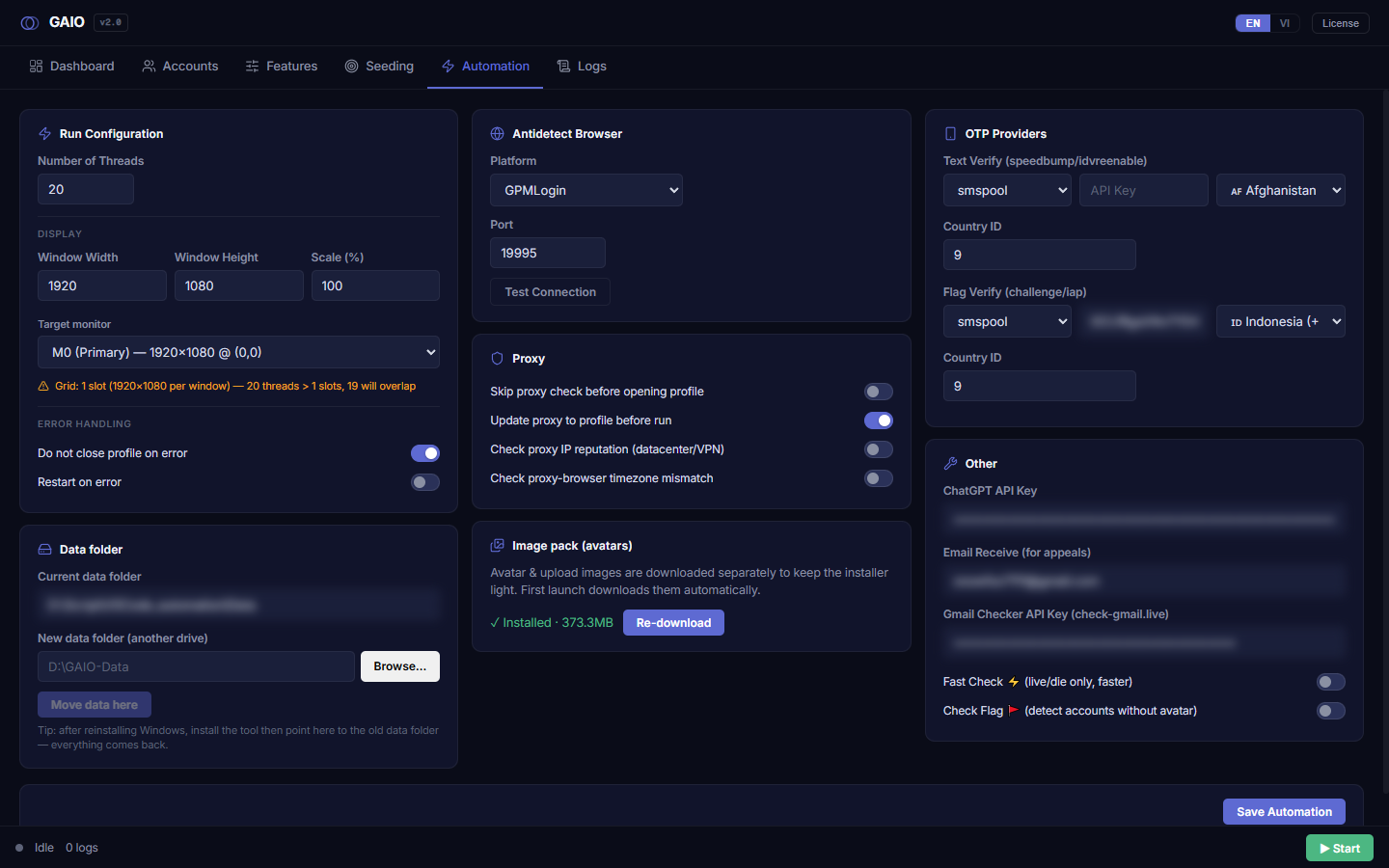
If the grid line turns orange with a triangle reading N threads > M slots, K will overlap, reduce the thread count or shrink the window size/Scale until the warning clears — that is the surest way to stop windows overlapping.
Error Handling
The Error Handling subgroup has four toggles that decide a profile's fate when it errors, and what the tool does once the run ends.
- Do not close profile on error — Default ON. When on, a failed profile's window stays open so you can inspect it. When off, failed windows auto-close.
- Restart on error — Default OFF. When on, a failed profile is retried from the start, up to the number set in the Tries box (default
3) — which only appears after you enable the toggle. - Save evidence on error (screenshot + DOM) — Default OFF. When on, every failed step captures a screenshot plus the page HTML into
Data/logs/dumps(kept 7 days, newest ~100 pairs), and they are bundled into Export support log — so a bug report carries the picture and the DOM next to the log instead of guesswork. Turn it on only while chasing a problem, since it writes extra files. - Shut down the computer after the run finishes — Default OFF. When on, the machine powers off 60 seconds after the run completes. To cancel, open Command Prompt and run
shutdown /a.
- Unattended bulk run — Turn Do not close profile on error OFF so failed windows don't pile up and hold resources.
- Want to see errors — Turn it ON so failed windows stay for inspection.
- Want auto-retry — Turn Restart on error ON, then set Tries. Note: a high Tries value can make one broken account eat a lot of time repeating the same failing flow.
- Save — Click
Save Automation.
Repeat the run (Seed Account only)
The Repeat subgroup sits right below Error Handling. Turn on Repeat the run — Seed Account only and, once the whole list has finished, the tool rests for a while and then runs the same accounts again — so nurturing (YouTube seeding included) keeps going without you pressing Start each time.
- Rounds (including the first) — how many times the list runs in total, 2–1000 (default
3). Tick Unlimited (until you press Stop) to keep going until you stop it. - Random rest between rounds (minutes) — a from–to range (default
30–90, up to 1440). Each rest is picked at random inside it. While resting, the bottom bar shows Round x/y · resting until HH:MM.
Nurturing only. Repeat works only when Seed Account is the only feature turned on. If anything else is on — Change Password, Change Recovery Email, 2FA, Remove Recovery Phone, Sign out all devices… — Start is refused and the message names the features to turn off. Security changes must never run twice by accident.
An account that fails to sign in (or whose window crashed) in one round is dropped from the next rounds; if none are left, repeating stops. Press Stop at any time — even during a rest — to end it. Resume only finishes the round that was cut off; it does not carry on repeating.
Recommended values
| Setting | Recommended | Note |
|---|---|---|
| Number of Threads | 2–4 | Start low, raise with your hardware. |
| Window Width × Height | 1920 × 1080 | Don't exceed FHD to avoid the warning. |
| Scale (%) | 100 | Below 100% is both flagged as a leak (unusual devicePixelRatio) and disables the window-size randomisation. Multilogin forces 100. |
| Randomize window size · Affected · Max W · Max H | ON · 90 · 20 · 10 | Only active at Scale 100. |
| Target monitor | All monitors | Spread if you have several screens. |
| Do not close profile on error | OFF for large runs | ON when you need to inspect. |
| Restart on error / Tries | Optional / 3 | Retries transiently-failing accounts. |
| Repeat | OFF | Turn on only for nurturing runs (Seed Account alone); rest 30–90 min. |
Before a run starts — what the tool checks
When you press Start the button turns into Starting... and the bottom bar names each check as it runs (license, profiles, PC clock, settings) — a few seconds of waiting is not a freeze, there is no need to press again.
- Antidetect & profiles — If the antidetect app is not open, the tool says so and offers Retry — open the app, then retry. If some accounts have no profile yet in the antidetect, a dialog offers Create & continue (make the missing profiles, then run), Run anyway (skip), or Cancel — so you no longer have to run first just to discover a profile is missing. Multilogin skips this check. The standalone Create missing profiles action is still there for creating without running.
- PC clock — 2FA codes are calculated from the clock, so a PC clock that is off makes every code wrong. If the run includes accounts with 2FA and this PC's clock is more than about a minute off, a This PC's clock is wrong dialog says by how much. Fix it (Windows Settings → Time & language → Date & time → Sync now) and press Start again, or choose Continue to run anyway — you won't be asked again until the app restarts. If the clock can't be measured (e.g. no internet), nothing is shown.
- Missing new password / recovery email — With Change Password or Change Recovery Email on, accounts that have nothing to change to are listed in a Missing info for the security changes dialog where you can fill them in — see Security changes.