Account info & verification
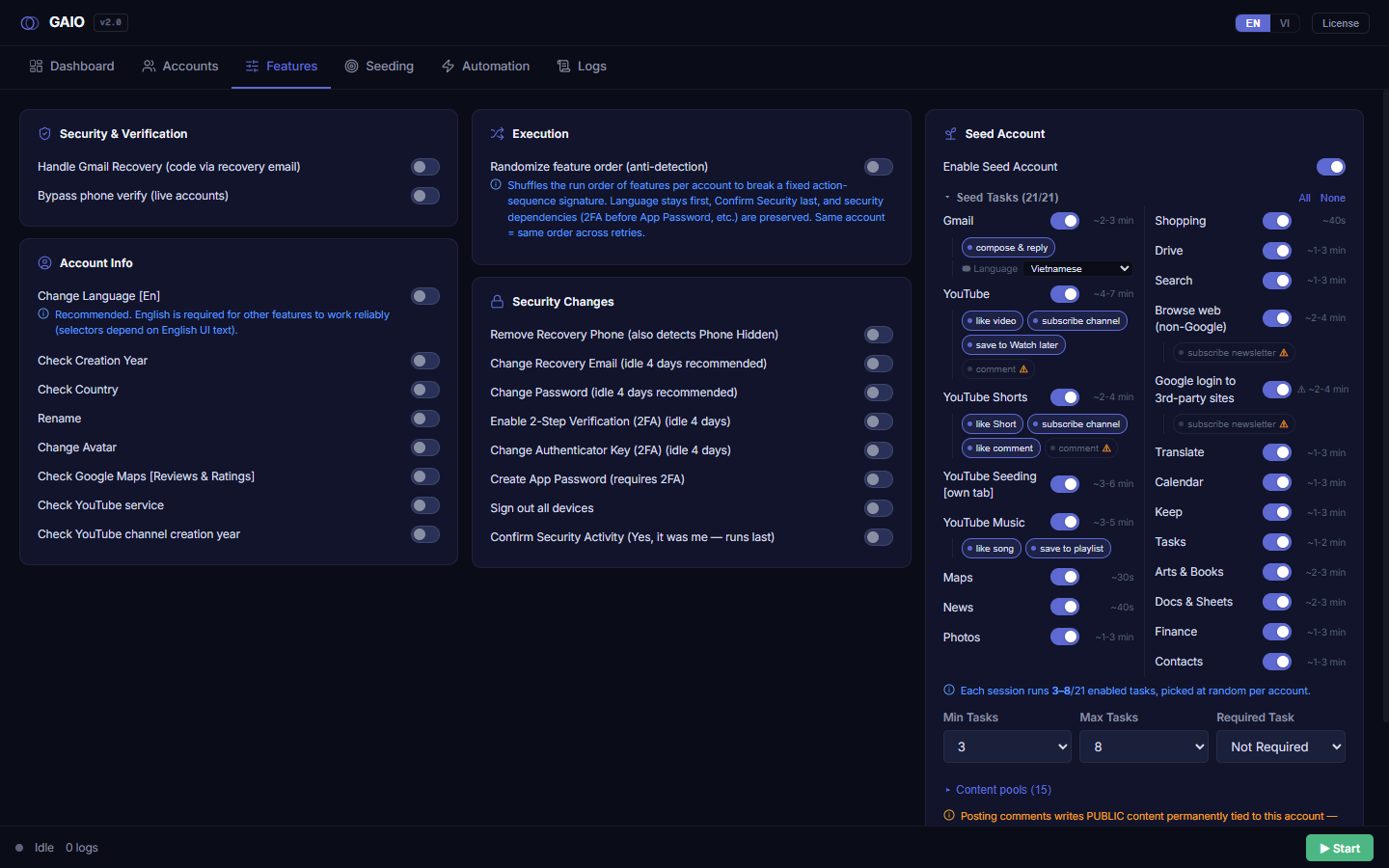
This part covers the two left-column panels: Security & Verification (handling login challenges) and Account Info (changing profile info and running information checks). All are ON/OFF toggles; the two file-based features (Rename, Change Avatar) expand an extra config panel when turned on.
Security & Verification (shield)
| Toggle | What ON does | Notes |
|---|---|---|
| Handle Gmail Recovery (code via recovery email) | When Google presents a Gmail recovery challenge during login, the tool reads the verification code sent to the account's recovery email and fills it in automatically. | Only useful if the account actually has a reachable recovery email. Without one, the recovery step can't complete. |
| Bypass phone verify (live accounts) | Attempts to get past a phone-verification prompt for "live" (active) accounts during the login/verification flow. | The label targets live accounts specifically. Effectiveness depends on the challenge Google presents — some hard ones (e.g. hand-gesture captcha) are not solvable and fail-fast. |
Account Info (user)
Change Language [En] — leave it ON
Change Language [En] switches the Google account's UI language to English. A blue info-circle note beneath the toggle recommends keeping it ON.
Why it matters: most of the automation's selectors depend on English text in the UI. If you turn this OFF, other Account Info / Security features can fail with an "element not found" error. This is why Change Language is always scheduled to run first.
Information checks (read-only, no account change)
| Toggle | What ON does | Notes |
|---|---|---|
| Check Creation Year | Reads and records the year the Google account was created. | Read-only; does not modify the account. The value is cached (fixed data like creation year is not re-fetched every run). |
| Check Country | Detects and records the account's country. | Country tracks the exit IP, so it is treated as dynamic data and re-fetched each run. A proxy region change can change the detected country. |
| Check Google Maps [Reviews & Ratings] | Checks the account's Google Maps activity (reviews & ratings). | Read-only — does not post or delete reviews. |
| Check YouTube service | Checks what YouTube service the account has (e.g. whether a channel exists). | Information check only. |
| Check YouTube channel creation year | Reads and records the year the account's YouTube channel was created. | Read-only; only meaningful for accounts that actually have a YouTube channel. |
Rename — change the display name from a word list
When you turn Rename ON, a grey config panel appears below it. The tool changes the display name using a first name + last name picked from your word-list files.
- Turn on
Rename— the grey panel expands. - Set
First names file— clickBrowse…and pick a.txt/.csvfile (filter: Text files *.txt;*.csv). Empty = the defaultFirstNames.txtin theDatafolder. - Set
Last names file— same; defaultLastNames.txt. - Choose
Pick mode—RandomorSequential (top → bottom, cyclic). - Press
Save Features.
Each file box shows a preview line: {count} names · Preview: name1, name2, name3 to confirm the file loaded correctly.
| Pick mode | Meaning |
|---|---|
| Sequential | Index applied to both files (modulo per file size). Counter cycles. Reset to 0 on every Save. |
| Random | Random pick each run. The same pair may repeat across runs. |
The file boxes are read-only — you must use Browse…; you cannot type a path. In Sequential mode the position counter is reset to 0 every time you press Save Features (re-saving restarts from the top of the list).
Change Avatar — set the profile picture from an image folder
When you turn Change Avatar ON, a grey panel appears. The tool sets the profile picture using an image chosen from your picture folder.
- Turn on
Change Avatar— the grey panel expands. - Click
Browse…next toPicture directory— choose a folder of images. Empty = the defaultPicturefolder inData. - Choose
Pick mode—RandomorSequential (top → bottom, cyclic). - Press
Save Features.
| Pick mode | Meaning |
|---|---|
| Sequential | Files sorted alphabetically, used in order. Counter cycles back to the start when reaching the end. Reset on Save. |
| Random | Random pick each run. The same account may reuse the same file. |
The directory box is also read-only (use Browse…). In Sequential mode the file counter is reset to 0 on every Save. In Random mode the same picture can be reused across accounts.