License activation
The commercial build of GAIO has license enforcement turned on: the tool must be activated with a valid license key before it will run. This chapter covers the whole License modal, the full-screen lock, and the steps to activate.
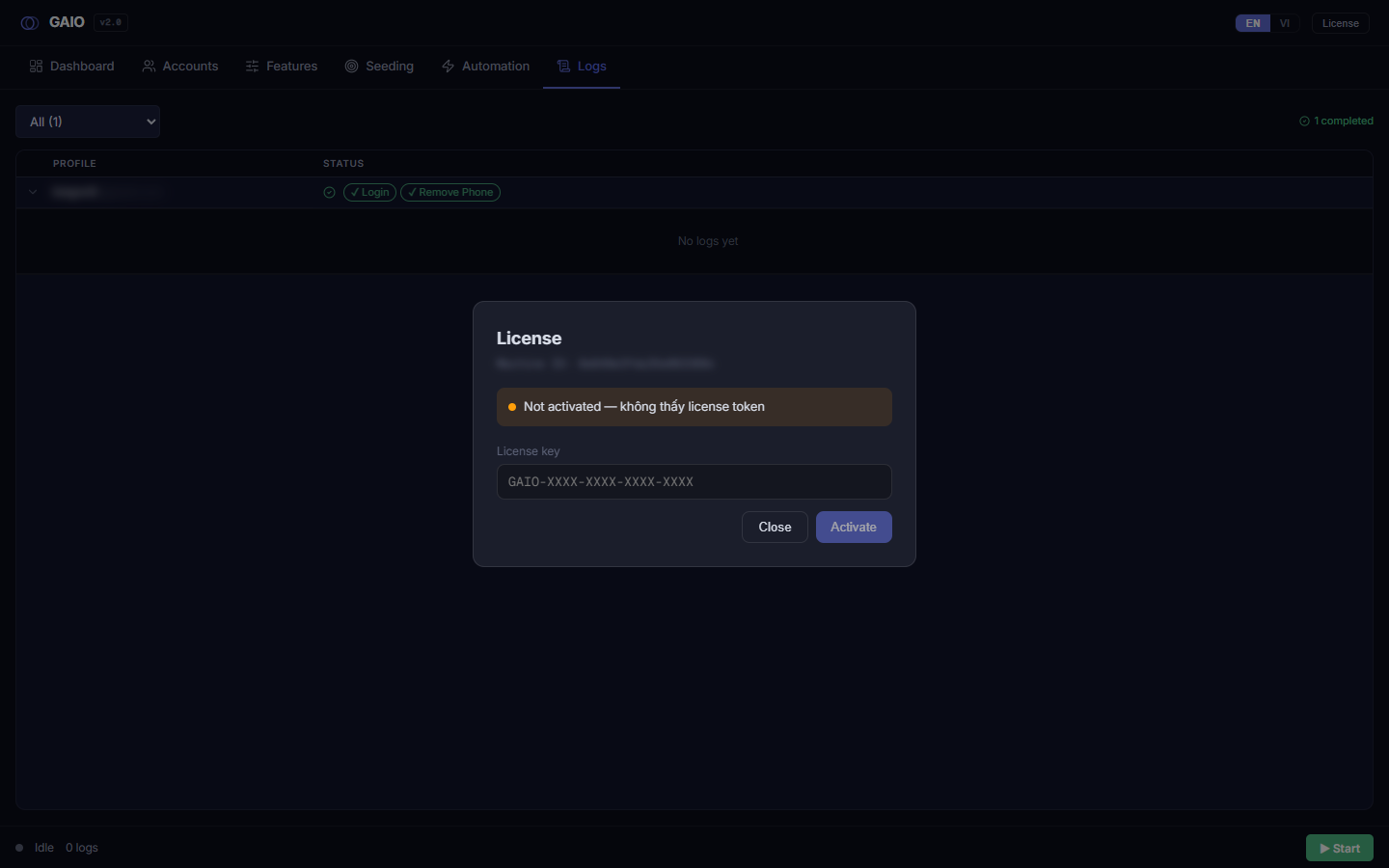
Opening the License modal
Click the outlined License button in the top-right of the header (to the right of the language selector). The modal opens over the app in normal mode — meaning it can be closed.
The activation status panel
The top of the modal tells you the tool's current state:
| Field | Meaning |
|---|---|
| Machine ID (first 20 chars) | Identifies this device to the license server. This is the string you send to the seller to obtain a key. |
| Status pill | Green dot + Activated = licensed; amber dot + Not activated = not licensed. A reason line from the server appears when present. |
| Expires | When licensed: shows the expiry date and (N days left), based on the real license expiry. |
| Max accounts per run | The maximum number of accounts per run your license allows (when the key carries this value). |
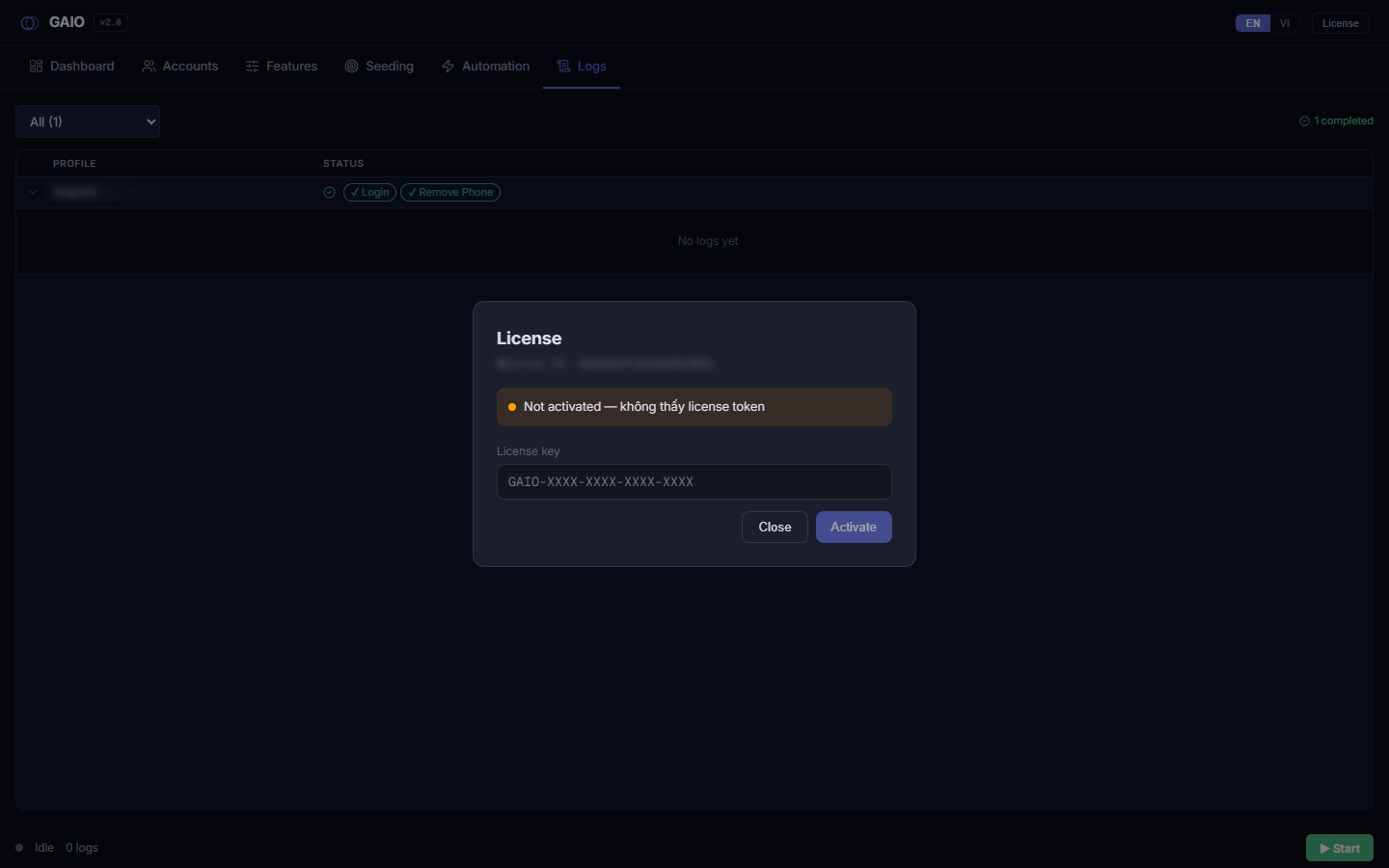
The days-left figure is computed from the real license expiry, not from the short-lived internal check token (~1 day) — so you won't be alarmed by a fake "1 day" number.
Steps to activate
- Click License — open the modal from the header.
- Copy the Machine ID — take the 20 characters and send them to the seller to receive a key.
- Paste the key into the field — a monospace input with the placeholder format
GAIO-XXXX-XXXX-XXXX-XXXX. - Click Activate (or press
Enter) — the button shows Activating… while it works. It is dimmed/disabled when the field is empty or busy. - Read the result — a green message = success (the key field clears and the lock lifts immediately); a red message = failure, with a reason, or Cannot reach license server if you are offline.
Activation requires a connection to the license server. Trying while offline shows Cannot reach license server. Make sure the machine is online before clicking Activate.
Expiring-soon warning
When the license has ≤ 7 days left, an amber line appears just below the status pill: "License expiring soon — renew to avoid interruption." This is informational only — it doesn't block activation yet — but if you let it lapse, an enforced build will re-lock.
The full-screen license gate
If you are on an enforced build and not activated, launching the tool shows a full-window lock: no tabs, no header, no status bar — only the License screen with the line "This tool requires activation to continue."
- An opaque background (not a translucent overlay), no Close button, and clicking outside does nothing.
- Enter a valid key and click Activate — the app unlocks and the normal interface appears.
- The tool re-checks the gate every 2 minutes: if the server revokes mid-session, the UI snaps back to this lock screen without a restart.
If the license expires or is revoked on an enforced build, the whole tool re-locks and you cannot run anything until you activate a valid key. Renew before expiry to avoid interrupting your work.
Exceeds-license-limit warning
When you press Start with more accounts than your license's max-per-run, a center-screen modal appears: "License limit: {max} accounts per run. You have {sel} — only the first {max} will run (skip {skip}). Continue?"
- Continue (indigo button) — runs the first {max} accounts.
- Cancel (outlined button) or clicking the backdrop — aborts so you can adjust your selection.
Even if you click Continue, the orchestrator still enforces the real cap — the extra accounts are skipped, not run. This modal only appears when the license carries a max > 0 and your run would exceed it.
The key follows your license, not one fixed PC. The Machine ID is only used to issue/activate the key for the current machine. When you switch computers, send the new Machine ID to the seller to have it re-issued — you don't lose your key by changing machines.