Exporting accounts
The Export button (a ghost-style button just right of Import on the toolbar) opens a small modal (470px wide) titled Export accounts, letting you export accounts to an Excel or text file with exactly the columns you choose.
Export scope: selected vs all
The scope is decided implicitly by which rows you tick in the table: if any accounts are checked, only those are exported; if none are checked, all accounts are exported. The modal title is the only indicator — it shows "— N selected" or "— all" so you know the scope.
To export a small group, tick those rows before clicking Export, then check that the modal title reads "— N selected".
Format: Excel (.xlsx) or Text (.txt)
- Excel (.xlsx) Default — exports a spreadsheet.
- Text (.txt) — exports a plain-text file. Choosing Text reveals a Delimiter row with preset buttons
|:,Tab;plus a free-text field (max 3 characters, defaults to|). Text mode also shows a Preview line displaying the chosen column labels joined by the delimiter (Tab shown as ⇥).
Choosing columns: All / Basic / None and the 21 columns
Three quick buttons help pick columns: All (every column), Basic (Email, Pass, Mail KP, 2FA only), None (clears all). Below them is the checkbox grid of 21 columns. The table below explains what each means:
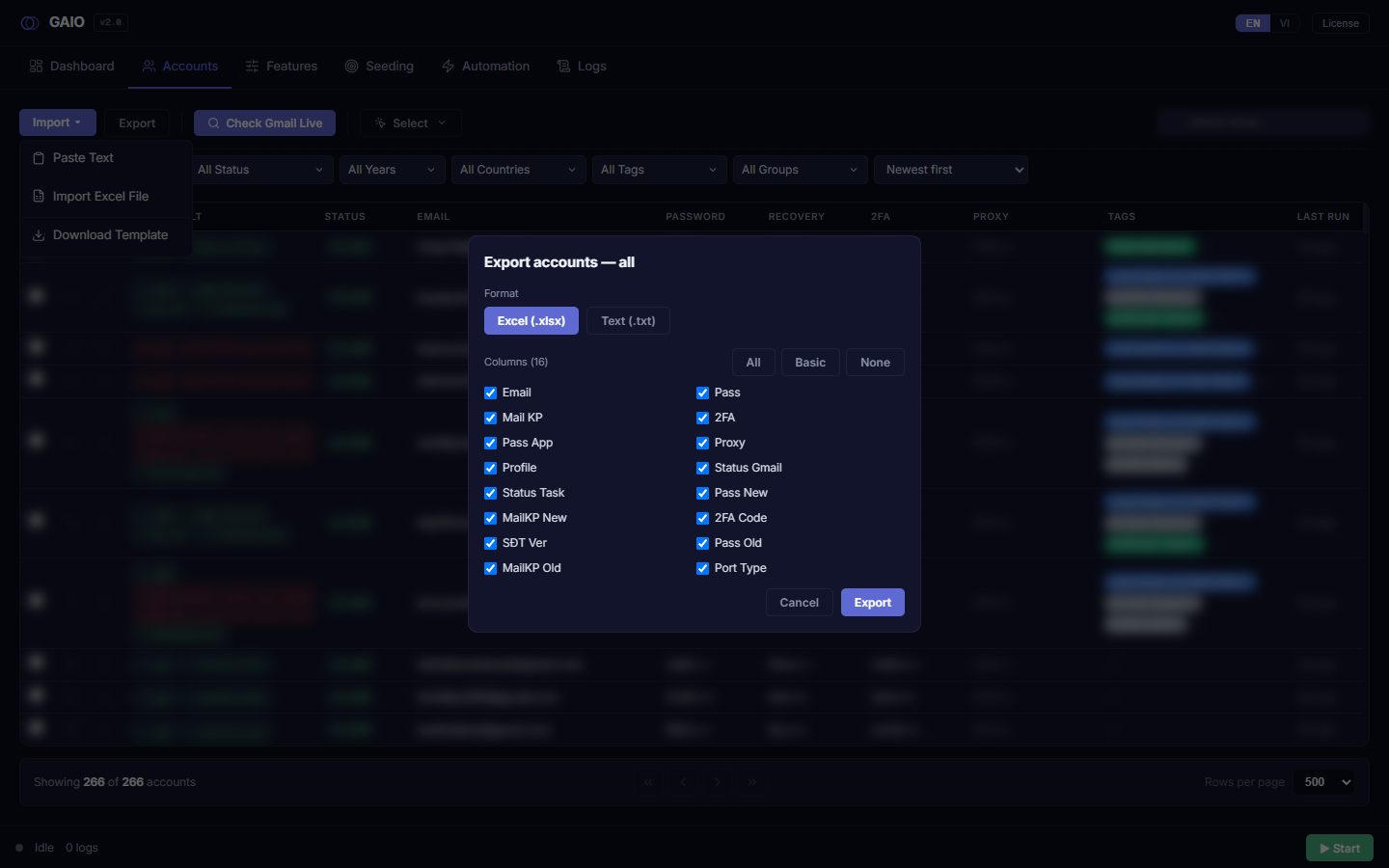
| # | Column | Meaning |
|---|---|---|
| 1 | The account's Gmail address. | |
| 2 | Pass | The account's current password. |
| 3 | Mail KP | The recovery email. |
| 4 | 2FA | The 2FA secret key (base32) used to generate two-factor codes. |
| 5 | Pass App | The 16-character app password. |
| 6 | Proxy | The proxy assigned to the account. |
| 7 | Profile | The antidetect (GPMLogin) browser profile name/ID for the account. |
| 8 | Status Gmail | The Gmail live/die status (LIVE / Verify / Disabled). |
| 9 | Status Task | The result of the account's most recent automation run. |
| 10 | Pass New | The new password (after a password change). |
| 11 | MailKP New | The new recovery email (after a change). |
| 12 | 2FA Old | The OLD 2FA secret (base32), saved before changing the Authenticator. |
| 13 | Phone Ver | The verified phone number (Phone Verified). |
| 14 | Pass Old | The old password (before a change). |
| 15 | MailKP Old | The old recovery email (before a change). |
| 16 | Port Type | The proxy's port type / connection type. |
| 17 | Backup Codes | The 10 login backup codes (space-separated), from Get Backup Codes; each is single-use. |
| 18 | Creation Year | The year the Google account was created, filled in by Check Country. |
| 19 | Creation Country | The account's country, filled in by Check Country. |
| 20 | OTP Number | The pre-bought phone number assigned to this account (providers of the sms222 kind). |
| 21 | OTP Code Link | The link that reads that number's messages. Kept encrypted, because anyone holding it can read them. |
The column order in the output always follows the standard order in the table above, not the order you ticked them. So you only choose which columns appear — the ticking sequence doesn't matter.
Steps to export accounts
- (Optional) Set the scope — tick the accounts you want; leave none checked to export everything.
- Open the modal — click
Export; check whether the title reads "— N selected" or "— all". - Pick a Format — Excel (.xlsx) or Text (.txt).
- If Text, pick a Delimiter — click a preset (
|:,Tab;) or type a custom one (max 3 characters). - Choose columns — use All / Basic / None or tick individual columns.
- If Text, check the Preview — verify the column-label order on the preview line.
- Export — click
Export; a toast shows the saved file path.
Clicking Export opens a Save-As dialog so you pick the folder and file name yourself; the file is then written there and a toast reports the path. Cancel in the dialog skips the export.
The Export button is disabled while exporting and when zero columns are selected ("Select at least 1 column"). Clicking the dark backdrop closes the modal (but not while an export is running).